Dubai e prezent in lista celor mai bine definite locatii panoramice cu o fotografie facuta de gigapan.org (via http://www.gadling.com).
Detalii tehnice:
4,250 individual shots taken with a Canon 7D and the 100-400mm f/4.5-5.6 L zoom at 400mm. Total shooting time circa 3 hours 30 minutes, in 37C heat (that's the temperature in the shade - the camera and lens were almost too hot to touch at the end of this).
PC - i7-920, 12GB RAM, 2x 300GB Velociraptors (not RAID). On attempting to stitch this the first time, I was told I needed just over a terabyte of scratch space, so I had to go out and buy a 2TB disk and install that as well!
Power and storage:
All 4,250 images (.jpg only) managed to fit on a single 32GB CF card, taking up 27.5 GB.
HUGE thanks to South Korean property developer Bando Construction and Engineering for making available the location to shoot this from - Ubora Towers in Business Bay, Dubai.
*edited the date taken field as it was showing the date the stitching was completed, and not the date the photos were taken.*
Date Taken: April 23, 2010
Bookmarked: 38 times
Total Views: 2248412 views
Snapshots: 996
Size: 44.88 gigapixels
Field of View: 243.3 degrees wide, 0.0 degrees high
Alright, far too often (especially in the IRC channels) there is a time where even the most beginner of users are faced with the terminal. It has many names: terminal, shell, console, “command prompt” even as a carryover from those familiar with Windows. Many people are frightened by it for some reason or another, so this tutorial will attempt to provide you the most basic of commands to enable navigation and basic system actions from the comfort of your keyboard.
Let’s get started shall we? Since everyone’s Mint version can be different, I’m not going to detail how to actually open the terminal. I’ll assume you can find it in the menu or by right-clicking in the desktop.
Facts:
You can do almost anything in a terminal which you would also do from a GUI interface.
Most commands were designed first to work in the terminal, then a GUI put on top of them. That’s why some GUI’s may feel clunky – they were an afterthought at times.
The default location for your terminal to open from the menu is in your home folder, also known as ~
Your current directory can be noted by the . operator. Most commands when they act on the current folder selection, operate on .
Commands, locations, and files are case sensitive. /home is not the same as /HOME or /Home.
Use the tab key to complete file names. If you have a long driver titled, for example,
driver-128947232jaseu.sh, simply type dri and it will fill in the rest, provided you don’t have 2 names starting with “dri” and if you do, add another character to make it “driv” and try again.
Almost any command can be read about in full using the manpage or by typing -h or –help after writing the initial command. This syntax is either man command_name, command_name -h, or command_name –help.
To get even more information, you can use info. A command can be searched for by using info command_name. For most of these commands which are part of the coreutils package, one can find info as well using info coreutils command_name invocation where command_name is replaced by the command searched for.
Almost any command can also explicitly display what is happening. This is done usually by the -v or –verbose
You can specify multiple command flags to a command at a time to get more information (see the ls -alexample below.)
Command names are not always obtuse – due to space limitations in the old days of Unix they were shortened, and the conventions stuck.
Commands:
cd -> Used to navigate the directories. You can move to any location by path.
cd This will move you back to your home, same as cd ~
cd .. This will take you back exactly one directory. Starting in /home/justin/Desktop, cd .. will put me into /home/justin. This can be expanded upon, cd ../../ from the Desktop location instead will move me 2 back, from my Desktop to /home.
cd foldername/ This will move you forward to the given folder in your current folder. Take note of the missing prefix / it is an important omission. if I am in /home/justin and I want to get to Desktop, I must type cd Desktop/ without the / before Desktop. Typing / before it places us in the root of file system, which is incorrect.
cd /some/other/path This will take you to the specified folder path, supposing it exists as typed exactly. Don’t forget your tab completion!
ls -> Used to list folder contents. You can view many kinds of file and folder attributes.
ls By itself, ls will simply list all your files in the current folder. From fact #4, this literally does ls .
ls -l Provides a longer listing format including owners, permissions, size, and date modified.
ls -a Displays hidden files and folders as well as the normal listing.
ls -al Combine options to display both hidden files and in the long format.
ls -h Show file sizes in human readable format (K, M, Gbyte) filesizes instead of bytes. Often used in conjuction with the -l flag.
You can view files in directories you are not even in. If I am in /home/justin/Desktop, and I want to view a file in /home/justin, I can do ls ../ list files one directory back (and not have to go back to do so.)
cp -> Copy files
cp file /path/to/folder Copies specified file to the given path.
cp -r folder /path/to/folder Copies recursively the contents of the folder to another folder.
cp *.extension /path/to/folder Copies files matching the given extension to the new folder. To copy all .doc files, it becomes cp *.doc /path/to/folder and the folder must exist.
cp name* /path/to/folder Copies all files starting with ‘name’ to the given folder. To copy all files starting with example, it becomes cp example* /path/to/folder and the folder must exist.
mv -> Move files
The syntax of mv is similar to the example above with cp exempt for example #2. mv does not take the -r flag since moving a folder also moves its contents. The syntax is not exact in all instances, but works with the above examples. Consult your manpages for more details.
rm -> Remove files
For all intents and purposes, removing files via rm is permanent. It does not use the Trash bin. Use with caution and make sure you are deleting explicitly what you want, not what you think you want. If you decide to get fancy with your delete commands, it’s probably going to come back to bite you.
rm file Remove the specified file from the system.
rm -r folder Remove the specified folder from the system
rm -rf folder Removes the specified folder forcefully from the system. This command can severely break your configuration if used incorrectly as it will not prompt you if something critical is being deleted. If you have to use this, chances are something more is broken or there was a mistake made. This should only be used as an absolute last resort method and is not recommended.
nano -> full command line text editor
One can edit files using nano in a terminal to do quick and dirty files all the way up to full configurations. It’s handy, but keep in mind it handles plain text files and programming files, things like MS Word documents will not open properly!
If a file is owned by root, it is not editable as a normal user. nano must be prefixed with sudo in order to save changes. Otherwise, it will open in read-only mode.
nano newfile.whatever Nano creates a new file of the specified name and opens it for editing.
nano existing_file Nano opens the existing file for editing.
From inside nano
Save file using the ctrl+o key combination, and either change the name or press entier to keep the same name. This will save the file.
Exit nano by using ctrl+x key combination. If you have unsaved changes, it will ask if you want to save.
mkdir -> Create directories
mkdir folder_name Creates the folder with the specified name
mkdir -p /path/to/folder/name Creates each folder as necessary. To create folder /home/justin/newfolder/2ndfolder, and only /home/justin exists, using mkdir -p will make both directories newfolder and 2ndfolder.
ps -> List processes
ps aux List all processes in detail running on the system, including user, Process ID (PID), and name of process. Using this, one can view their process list and if necessary, kill unnecessary or stalled processes.
kill PID PID is a number referencing the offending process. One should obtain the PID from a command likeps aux. If a process refuses to die, one can alternatively specify kill -9 PID which should terminate the process by any means, even uncleanly or if it will mess up the system.
killall program Killall kills *by name* all instances of said program. If there are for example 3 firefox sessions open, killall firefox will do just that; kill all firefox sessions. kill would simply take the specified PID of the offending firefox process you wish to kill, and kill that one only.
xkill is a GUI way to click and kill windows. Typing in xkill should present a skull-and-crossbones icon, and the next window clicked on will be killed.
Pipes -> The most useful thing you will learn in *NIX. Redirecting output of a program to anothers input.
Pipes are represented by the ‘ straight bar ‘ otherwise known as the ‘ | ‘ key.
It is a rarely used key in Windows, it is often found on the backslash key.
They are used to link commands together. Pipes take the output of one command and route it to be used as input for a second command chained together.
Consult more online resources with information about pipes and their use as there are volumes.
> and >> redirectors –> Send output to a file instead of the terminal.
> is used to *overwrite* currently existing files contents and replace with the output from the new command.
>> is used to *append* information to currently existing files. This is useful for logging.
Example: ps aux > processes.log Sends the output of ps aux to the file processes.log for viewing the command output in a text editor and overwrites the current contents of the file.
tee -> Send output to both a file and the terminal
tee is used in conjunction with a ‘ | ‘ in order to take the command output and send it elsewhere. This is useful if there are errors which fly by the screen before you can read them, this way whatever goes on the screen is also captured to a file.
Example: dmesg | tee boot.txt would run the command dmesg which shows the initial boot info, and the ‘ | ‘ sends the output of dmesg to tee, which then does its job by sending it to the terminal and to the log file boot.txt.
File Execution
So you want to execute files or programs from the terminal? Make sure it’s marked executable. If not, see Quick Tip #4 below.
Need to execute a file in the current directory after it is marked executable? The ./ operator can execute the file as a normal user provided you do not need root rights. ./ literally means “in the current directory” so it does not work on files outside of the present directory.
Need to execute a file not in the current directory? You must pass the path to the proper executing program. If it is a python program, it’s python /path/to/file and if it is a shell file, it is sh /path/to/file as an example. There are of course other programs, but these will be the most common for beginners.
Need to execute a file with root rights because you received operation not permitted? Prefix the command with sudo. Thus, from the above example, sudo python /path/to/file will execute the script with root rights.
Need to execute a GUI program from the terminal? Simply type the program name (case sensitive!) and it will launch. This will render the current terminal unusable. Closing the terminal while the program is open will kill the program. A better way is to background the program, using program_name & and then typing the word exitat the terminal to close it and keep the process running.
Need to run a GUI program with root rights from the terminal? Prefix it with gksudo or gksu and not sudo. Using sudo to launch GUI applications is a bad habit and should be avoided.
Do not, do *not* use sudo simply because something receives “Operation not permitted.” Keep in mind what you are doing as you can absolutely *destroy* systems by running commands in the wrong place with root rights. This point cannot be emphasized enough.Make sure your files come from reputable sources.
Quick tips:
Lost yourself in a directory? Not sure where you are? Type pwd to print working directory.
Want to calculate your disk space quickly? df -h can give you a quick checkup.
Want to calculate the size of a folder or file quickly? du -cksh target_name can do exactly that. Want to calculate the size of the current folder? du -cksh.
Need to mark a file executable? chmod +x filename can do that. Next time you see a file you need to execute and it is not marked executable, now you know how to fix it.
Want to mount an iso like Daemon-Tools on Windows? Linux has this functionality built in. Simply create a directory somewhere, say /home/justin/isomount, and issue the command mount -o loop /path/to/myisofile.iso /home/justin/isomount and the contents will be mounted inside that folder.
Run a command before, you need to re-run it, but you can’t really remember what it was exactly? Type historyinto the terminal and it will print out your command history. Want to clear your history? history -c will wipe the information.
Posted By: Teodor Muraru Last Edit: 05 Aug 2010 @ 02:28 PM
Give me freedom, give me fire
Give me reason, take me higher
See the champions take the field now
Unify us, make us feel proud
In the streets our heads are liftin’
As we lose our inhibition
Celebration, it surrounds us
Every nation, all around us
[Bridge]
Singing’ forever young, singin’ songs underneath the sun
Let’s rejoice in the beautiful game, and together at the end of the day
[Chorus]
We all say,
When I get older, I will be stronger
They’ll call me freedom just like a wavin’ flag
And then it goes back, and then it goes back, and then it goes back
And then it goes
When I get older, I will be stronger
They’ll call me freedom just like a wavin’ flag
And then it goes back, and then it goes back, and then it goes back
And then it goes
Oh oh oh oh oh, Oh oh oh oh oh, Oh oh oh oh oh X2
Give you freedom, give you fire
Give you reason, take you higher
See the champions take the field now
Unify us, make us feel proud
In the streets our heads are liftin’
As we lose our inhibition
Celebration, it surrounds us
Every nation, all around us
[Bridge]
Singing’ forever young, singin’ songs underneath the sun
Let’s rejoice in the beautiful game, and together at the end of the day
[Corus]
We all say,
When I get older, I will be stronger
They’ll call me freedom just like a wavin’ flag
And then it goes back, and then it goes back, and then it goes back
And then it goes
When I get older, I will be stronger
They’ll call me freedom just like a wavin’ flag
And then it goes back, and then it goes back, and then it goes back
And then it goes
Oh oh oh oh oh, Oh oh oh oh oh, Oh oh oh oh oh X2
We all say,
When I get older, I will be stronger
They’ll call me freedom just like a wavin’ flag
And then it goes back, and then it goes back, and then it goes back
And then it goes
When I get older, I will be stronger
They’ll call me freedom just like a wavin’ flag
And then it goes back, and then it goes back, and then it goes back
And then it goes
Oh oh oh oh oh, Oh oh oh oh oh, Oh oh oh oh oh
And everybody will be singing it
Oh oh oh oh oh, Oh oh oh oh oh, Oh oh oh oh oh
And we all will be singing it…
Chorus
When I get older, I will be stronger
They’ll call me freedom just like a waving flag
Verse 1
born to a throne
stronger than rome
but violent prone
poor people zone
but it’s my home
all i have known
where i got grown
streets we would roam
out of the darkness
i came the farthest
among the hardest survival
learn from these streets
it can be bleak
accept no defeat
surrender retreat (so we struggling)
fighting to eat (and we wondering)
when we will be free
so we patiently wait
for that fateful day
its not far away
for now we say
Repeat Chorus
When I get older, I will be stronger
They’ll call me freedom just like a waving flag
and then it goes back (3x)
and then it go when i get older i will be
stronger they call me freedom just
like a waving flag
and then it goes back (3x)
oh oh oh
so many wars settling scores
bringing us promises, leaving us poor
i heard them say love is the way
love is the answer that’s what they say
but look how they treat us
make us believers make we
fight there battes then they deceive us
try to control us they couldn’t holf us
cause we just move forward
just like buffalo soldiers (so we struggling)
fighting to eat (so we wondering)
when we will be free
so we patiently wait
for that fateful day
its not that far away
for now we say
Repeat Chorus
and than everybody will be singing it
and you and i will be singing it
and we all will be singing it
wo wah wo ah wo ah
Repeat Chorus till fade
When I get older, I will be stronger
They’ll call me freedom just like a waving flag
The Dusty Foot Philosopher and Troubadour man, @iamknaan, is the singer behind the official anthem for the Mzansi Mundial in June this year. Waving Flag, probably K’Naan’s most popular song to date, is undoubtedly an African song and calls on us to “release our African rhythm all over the world”.
The Somalian rapper, K’Naan Warsame, is based in Toronto, Canada and Los Angeles, USA. The video is directed by Nabil Elderkin and produced by Sol Guy. There is a cameo by Damian Marley. The original lyrics for Waving Flag can be foundhere. Here are the lyrics for the remix.
Ooooooh Wooooooh, Ooooooh Wooooooh
Give me freedom, give me fire, give me reason, take me higher
See the champions, take the field now, you define us, make us feel proud
In the streets our heads are lifting, as we lose our inhibition,
Celebration, it surround us, every nations, all around us
Singing forever young, singing songs underneath that sun
Lets rejoice in the beautiful game,
And together at the end of the day.
We all say
When I get older I will be stronger
They’ll call me freedom, just like a wavin’ flag
When I get older I will be stronger
They’ll call me freedom, just like a wavin’ flag
So wave your flag, now wave your flag, now wave your flag
Oooohhh, Oooooooooh wooooohh, Oooooooooh wooooohh
Give you freedom, give you fire, give you reason, take you higher
See the champions, take the field now, you define us, make us feel proud
In the streets our heads are lifting, as we lose our inhibition,
Celebration, its around us, every nations, all around us
Singing forever young, singing songs underneath that sun
Lets rejoice in the beautiful game,
And together at the end of the day.
We all say
When I get older I will be stronger
They’ll call me freedom, just like a wavin’ flag
When I get older I will be stronger
They’ll call me freedom, just like a wavin’ flag
So wave your flag, now wave your flag, now wave your flag
Now wave your flag (4x)
Oohhoooohh Woooh Ohohooooh Wooohoooh
We all say
When I get older I will be stronger
They’ll call me freedom, just like a wavin’ flag
When I get older I will be stronger
They’ll call me freedom, just like a wavin’ flag
So wave your flag, now wave your flag, now wave your flag
Now wave your flag (4x)
Oooooh woowoo ooh Wooo ooohh ooohoh
And everybody will be singing it
Oooooh woowoo ooh Wooo ooohh ooohoh
And we all will be singing it
See what’s new with SD technology! Find out how to use all SD memory cards and the new UHS-I high speed performance option available for SDXC and SDHC. Learn how to match the new UHS symbols on memory cards to your devices and other usage tips to achieve the best performance.
Watch this video and see how easy it is to use SD Memory Cards in all of the new and exciting SDXC and SDHC devices. To enjoy the optimum experience, simply check your device’s Owners Manual and then match your SD memory card to the device. Since SD is backwards compatible, you can even use your existing cards in new products, too.
Find the Right SD Memory Card
SD
miniSD
microSD
Full Size
(Up to 2GB)
High Capacity
(4GB to 32GB)
Extended Capacity
(Over 32GB up to 2TB)
SD memory cards come in a variety of speed classes and three different physical sizes: SD, miniSD, and microSD. The SD card is typically used in personal computers, video cameras, digital cameras and other large consumer electronics devices. The microSD and miniSD cards are commonly used in smaller electronic devices like mobile phones. Some manufacturers offer adapters to fit a traditional SD card slot, allowing even greater versatility and flexibility to use the card in a mobile phone as well as a computer or video camera.
To determine the right card for your device, always consult the device’s user manual or contact the manufacturer. All SD memory card formats are readily available in the marketplace and can be found in a range of retail outlets including drug stores, electronics and computer shops and Internet sites.
Choosing the Best Card – What Memory Capacity do I Need?
SD memory cards come in a variety of memory capacities designed to fit your needs and budget. The next-generation SD memory card specification, SDXC, offers the greatest memory capacity and UHS SDHC and SDXC products offer the fastest performance. Your device’s users manual may help you select the memory that is right for your device. You can also determine the best memory capacity based on how you plan to use the card. For cameras, consider the picture resolution of every photo, and for your MP3 player, the bit-rate required for smooth playback. Take a look at our reference chart that illustrates the various storage capacities.
2 GB
4 GB
8 GB
16 GB
32 GB
Movies (Hi-def movie recording MPEG-4. H.264)
Fine mode (13Mbps/CBR)
20 min.
40 min.
80 min.
160 min.
320 min.
Normal mode (9Mbps/VBR)
30 min.
60 min.
120 min.
240 min.
480 min.
Economy mode (6Mbps/VBR)
45 min.
60 min.
180 min.
360 min.
720 min.
Photos
10 Megapixels, 3648×2736, Fine mode
770 photos
1,540 photos
3,080 photos
6,160 photos
12,320 photos
Music
ACC, MP3 HQ mode, 128Kbps
34 hr. 7 min.
68 hr. 14 min.
136 hr. 27 min.
272 hr. 54 min.
545 hr. 48 min.
* All numbers are approximate. Actual storage will depend on size of data and compression used.
How to Pick the Best Speed
For greatest performance, users should pair their devices with the corresponding SD memory card. Your device user’s manual will help you select the SD memory card performance that will maximize your device performance.
SD Speed Class/UHS Speed Class
Greater Performance Choices
There are two kinds of Speed Class, “Speed Class” and “UHS Speed Class.”
As a characteristic of flash memory, actual transfer speed varies. Variable speeds are difficult to reliably record streaming content such as video because it requires a constant writing speed. Speed Class and UHS Speed Class provide the constant speed necessary for video recording by designating a minimum writing performance so that minimum and constant speed is guaranteed for camcorders, video recorders and other devices with video recording capabilities under the conditional write operation specified in the specification.
Speed Class, designated as Class 2, 4, 6 and 10, is designed for normal and high speed bus interface (mode) and UHS Speed Class 1 is designed for UHS-I bus interface*. (Speed Class and the UHS Speed Class are not compatible.)
*UHS (Ultra High Speed), the fastest performance category available today, defines bus-interface speeds up to 104 Megabytes per second for greater device performance in SDXC and SDHC host products.
Full HD video recording
HD still consecutive recording
UHS Speed Class
UHS-I Bus I/F
Full higher potential of recording real-time broadcasts and capturing large-size HD videos
SDHC UHS-I and SDXC UHS-I
UHS Speed Class Compatibility
Speed Class Compatibility
Fragmentation and Speed
The memory of a card is divided into minimum memory units. The host writes data onto memory units where no data is already stored. As available memory becomes divided into smaller units through normal use, this leads to an increase in non-linear, or fragmented storage. The amount of fragmentation can reduce write speeds, so higher SD card speeds help compensate for fragmentation.
The SD Association has specified operating conditions for SDHC, SDXC, SDHC UHS-I and SDXC UHS-I memory cards to guarantee the minimum speed according to the card’s speed class. Speed logos are provided to help identify cards that comply with these specifications.
Posted By: Teodor Muraru Last Edit: 30 Jun 2010 @ 11:31 PM
No CAPTCHA can survive a human that’s receiving financial incentives for solving it, and with an army of low-waged human CAPTCHA solvers officially in the business of “data processing” while earning a mere $2 for solving a thousand CAPTCHA’s. | August 29, 2008
Cloned In China is a tech news website, covering China’s latest consumer electronics, like laptops, Mobile phones, MIDs, portable media players, and so on. We provide the website as an informative resource only. We don’t promote or sell any product on this website.
Posted By: Teodor Muraru Last Edit: 23 May 2010 @ 01:59 PM
Alcohol may not be the answer, but it makes you forget the question. — When faced with the Gandhi quote “Alcohol is not the answer to life’s question”, Vijay Mallya once responded “At least it helps you forget the question”
Microsoft is not the answer. Microsoft is the question. ‘No’ is the answer. — Erik Naggum
Sex is not the answer. Sex is the question. ‘Yes’ is the answer.
Education is not the answer to the question. Education is the means to the answer to all questions. — William Allin
Love is the answer, but while you are waiting for the answer sex raises some pretty good questions. — Woody Allen
If love is the answer, can you please repeat the question? — Tomlin Lily
The Answer to the great Question of…Life,the Universe and Everything…is Forty-two. — Adams Douglas – 1952 – The Hitch Hiker’s Guide to the Galaxy
The answer is blowin’in the wind. — Dylan Bob 1941 – Blowin’ in the wind
Instead of stopping, this train picks up and drops off a shuttle from its roof. Pretty slick.
It looks cool and it doesn’t brake for anybody. No, it’s not a teenage rebel, it’s a train. The “Train that Never Stops” looks to save passengers time and train companies money spent on fuel. This concept, which has been kicking around for years, proposes that trains have a special shuttle on their roofs that passengers can enter and exit. At each stop, a new shuttle is picked up and an old one is dropped off, letting passengers (dis)embark via the shuttle without the need for the entire train to stop. It’s an ingenious idea and a fascinating one to watch in action. Check out the concept video below.
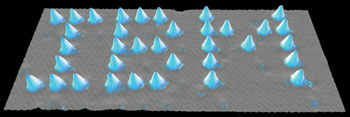
“The birth of nanotechnology is popularly taken to be 1989, when IBM Fellow Don Eigler used a scanning tunneling microscope to create the company’s logo out of xenon atoms.”




 Previous Entries


 Categories
 Tag Cloud
 Blog RSS
 Comments RSS
 Last 50 Posts
 Back
Back
 Void
Void  Life
Life  Earth
Earth  Wind
Wind  Water
Water  Fire
Fire